
The CSP (Cloud Solution Provider) is a different contractual arrangement with Microsoft than the Enterprise Agreement (EA). Nebula does not provide support for provisioning or usage reporting, but it can provide limited reporting based on the CSP invoice costs for both Azure services and other license-based offerings such as Office 365. Nebula supports the following CSP Partners through integration with their respective Provider Billing and Invoicing Platforms:
- Tier 1 through Partner Center
- Tier 2 – Arrow through Arrowsphere
- Tier 2 – TDSynnex through StreamIon
Overview
The Cloud Solution Provider (CSP) Invoice report provides a breakdown of CSP invoice charges for a configured Provisioning Entity (CSP Partner), broken down by CSP customer. For each customer, it provides separate row detailing charges for each product used by the customer. For Azure usage, the report provides a breakdown per Azure Meter Id, similar to what is provided by the Monthly Costs Report for the EA. Users with access to multiple Provisioning Entities can generate combined report across all of them.
How to Download the Cloud Solution Provider Invoice Report
1. Log in to the UI and then click on the Reporting button:

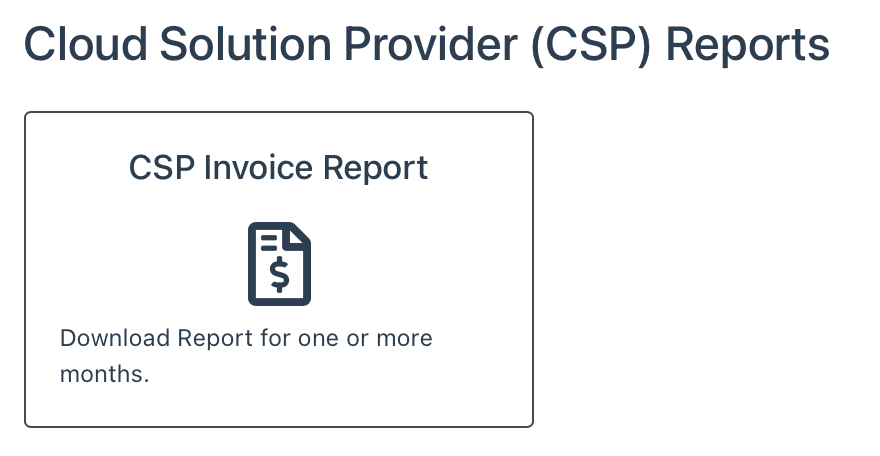
2. Click on the CSP Invoice Report:
3. The Monthly Costs Report dialog will be displayed:
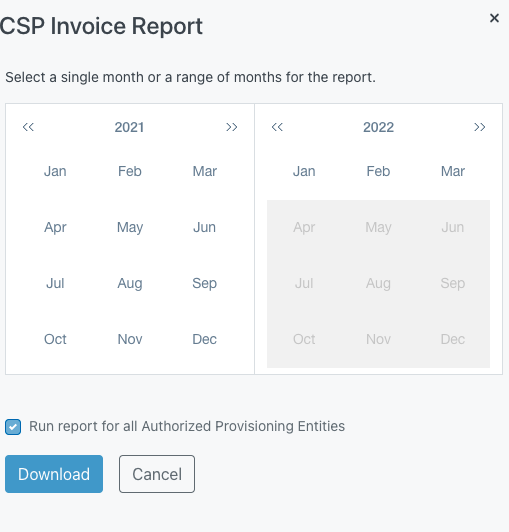
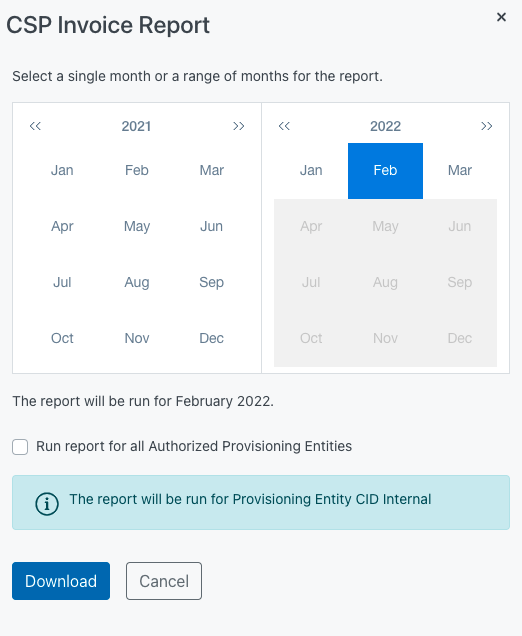
4. You can generate the report for a single month, or for a range of months. In the context of the CSP report, the month refers to the month the invoice was issued by Microsoft, not the month the charges were incurred by the customer. To generate the report for a single month, click on the month for which you would like to generate the report. Be sure to select the month that corresponds with the correct year. The dialog will indicate the month for which the report will be generated. Then, click the Download button:
To generate a report for a range of months, click on the month you want to be the beginning of the report, then select the end-month. Verify that the report will be run for the correct month(s) and year(s). The dialog will indicate the month range. Then, click the Download button:
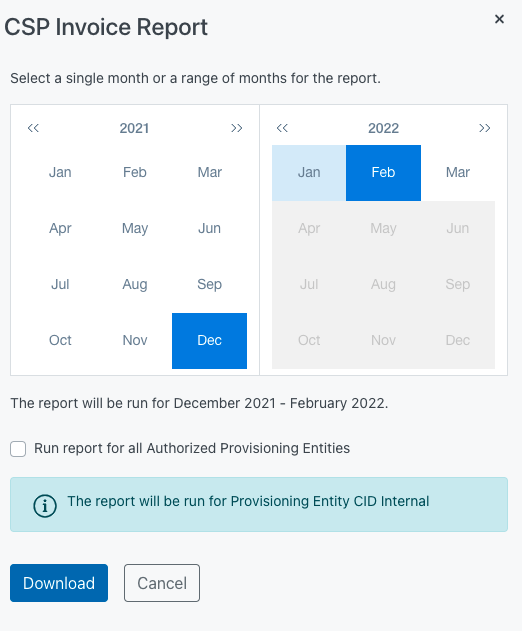
NOTE: If you check the “Run report for all Authorized Provisioning Entities” box, the information box indicating that the report will be run for the Provisioning Entity you’re currently logged in to will disappear, and the report will be downloaded for all Provisioning Entities your user has access to.
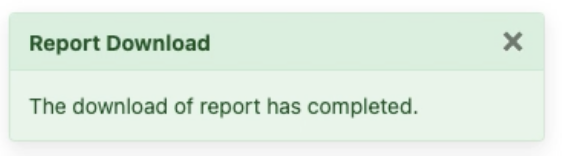
6. The UI will display a success message and the report will be downloaded as a .csv file.
Understanding the CSP Invoice Report
Here is an explanation of each column of the report:
- provisioningEntityId: Unique GUID that identifies the Provisioning Entity that the report covers
- englishProvisioningEntityName: English Language name for the Provisioning Entity
- japaneseProvisioningEntityName: Japanese Name for the Provisioning Entity (if applicable)
- mpnId: Microsoft partner identifier applicable to both Tier 1 and Tier 2
- partnerId: Partner’s Microsoft Entra ID—a unique identifier for Cloud Solution Provider program (CSP) partners
- invoiceNumber: Identifies the invoice number associated with the row of data
- invoiceDate: Identifies the date the invoice was processed by Nebula associated with the row of data
- customerId: GUID of the CSP customer – a unique identifier for customers
- customerName: Billing profile name of the customer. Note this name can change for a customer over time as it can be updated by a customer’s global admin
- productId: Product identifier being shown in the row
- productName: Product name being shown in the row
- chargeType: Type of charge or credit
- subscriptionId: Subscription identifier
- chargeStartDate: Start date for the charges associated with the invoice row
- chargeEndDate: End date for the charges associated with the invoice row
- pricingCurrency: Currency in which the unitPrice is priced
- billingCurrency: Billing currency of the generated invoice
- exchangeRate: Exchange rate used to convert costs from pricing currency to billing currency
- termAndBillingCycle: The duration of subscription. For license-based offerings, this identifies the billing cycle for the charges associated with the invoice row
- billingFrequency: Billing plan or payment frequency
- unitType: Type used for billing unit calculation
- unitPrice: Price per unit or license, as listed in the price list in supported currencies for applicable countries/regions
- effectiveUnitPrice: The final price of one subscription license for a billing plan, considering factors like billable days, discounts, promotions, and other adjustments
- billableQuantity: Number of licenses, usage hours, or other units used for product billing
- subtotal: Pretax cost to customer
- taxTotal: Tax amount. Set by the tax regulations of the partner’s country or region
- total: Total cost to customer. Equal to the subtotal plus the tax amount
- cspCost: Total cost to CSP including tax
- cspMargin: Net between total and cspCost
Note: Nebula CSP Invoice Reports populates the data as received from the Provider CSP reports. Fields that are not available in certain Provider reports and shown as blanks. e.g. chargeType field is blank in Tier 2 – Arrow CSP Invoice Reports
Note: In order to preserve Japanese characters in a CSV file, you must take additional steps. Please see: https://smallbusiness.chron.com/microsoft-excel-wont-show-japanese-characters-77317.html